

Radiant supports several ways to work on docs. You can edit visually in the dashboard, ask the writing agent to make changes, edit Markdown source directly, or use the CLI for local preview and Git-based review.
Choose a workflow
Use the dashboard when you want a no-code editing path. Use the writing agent when you want help drafting or revising docs. Use Markdown and the CLI when you want direct file control, local preview, or Git review.
| Workflow | Best for | Requires |
|---|---|---|
| Dashboard editing | Visual page edits, navigation changes, settings changes, and non-code contributors | Radiant access |
| Writing agent | Drafting, rewriting, cleanup passes, and multi-file docs updates from instructions | Radiant access |
| Markdown and CLI | Direct page-source edits, code review, local preview, and Git-based collaboration | GitHub repository access |
| Mixed | Teams that combine browser edits, agent changes, and local reviews | A clear publish and pull routine |
Dashboard-first workflow
Use the dashboard editor when you want Radiant to handle the editing environment for you.
Open the editor
Open the Radiant dashboard and go to the editor for your docs project.
Edit content or settings
Update pages in visual or source mode. Use doc settings when you need to change global configuration such as branding, navigation, navbar, or footer.
Save your changes
Save changes to the current draft. If someone changed the same content while you were editing, Radiant asks you to review the conflict before saving or publishing.
Publish to live docs
When the draft is ready, publish it to your live docs site.
Watch deployment status
Open the dashboard Overview page to see the deployment start right away.
The deployment activity shows the dashboard editor update while the build is running.
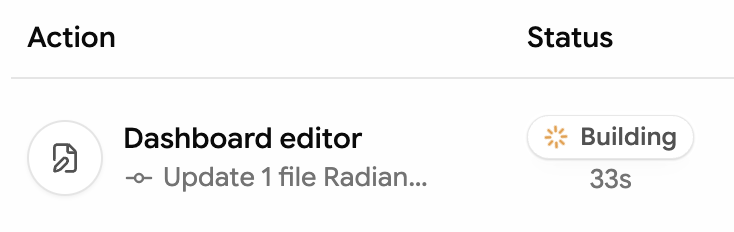
When the deployment shows Success, the updated docs site is live.

Dashboard-first editing works for both Radiant-managed projects and GitHub-backed projects. In Radiant-managed projects, Radiant manages the docs repository for you. In GitHub-backed projects, dashboard edits are saved through the connected repository.
Writing agent workflow
Use the writing agent when you want to describe the docs outcome in plain language and let Radiant make the content changes.
Open the writing agent
In the dashboard editor, click Writing agent.
Ask for a focused change
Describe the page, audience, and outcome you want.
Review the result
Read the agent summary, inspect the changed files, and use follow-up prompts when you want another pass.
Publish when ready
Agent changes are applied to your draft. Publish the draft when the updated docs are ready to go live.
Markdown and CLI workflow
Use the CLI when you want to edit docs locally and review changes through Git.
Clone the docs repository
Clone the repository that contains your docs source.
If your docs root is a subfolder, change into the folder that contains
docs.json.
Start local preview
Run the CLI from the docs root:
The CLI validates that docs.json exists, syncs your docs into a local
preview environment, and starts a hot-reloading dev server.
Edit and review
Edit .mdx page files, assets, or docs.json. Review the local preview
before you commit.
Commit and push
Commit your changes and push them to the connected repository.
After you push, Radiant starts a deployment for the updated docs.
Mixed workflow
Many teams combine workflows:
- Use the dashboard for small text changes, navigation updates, and doc settings.
- Use the writing agent for drafting, restructuring, and cleanup.
- Use the CLI for larger edits, branch-based review, and changes that benefit from local tooling.
- Pull the latest repository changes before editing locally.
- Save or publish dashboard edits before starting a related local change.